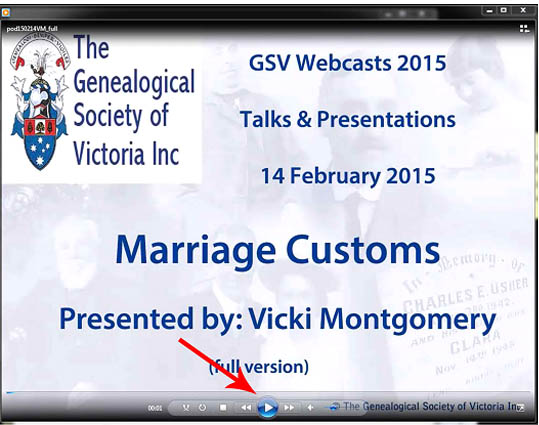
GSV Webcasts
We hold a large and growing collection of webcasts on a wide variety of topics specifically for family historians.
What are they?
The webcasts are audio/visual recordings of GSV talks given over the last few years. They may be downloaded to your computer and viewed in a single sitting or at your leisure over shorter periods if more convenient. They are not designed for listening as audio-only files on your portable device as the speakers often refer to their presentation slides. It is also strongly recommended that the files are downloaded for later viewing rather than being streamed.
Where can I get them?
Webcasts may be found in one of two ways.
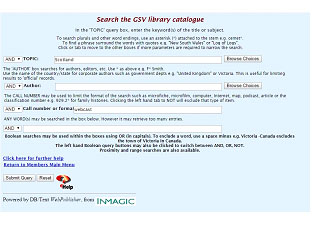 Firstly, they may be selected by searching the GSV Catalogue for a topic or author. When using this method remember to enter the term ‘webcast’ in the “Call number or format” field.
Secondly, a list of all webcasts may be found by selecting “webcasts” on the GSV Search Menu. This list is in alphabetical order of the speaker’s surname.
How do I download them?
Click on the hyperlink to the webcast of interest.
 This will take you to the relevant catalogue entry page which contains information pertinent to the webcast. The entry also includes details of the file type, date, size, and the length of the talk.
To download the file, Window users should right click on the download file hyperlink and select Save target as or Save link as. Save the file to a convenient place on your hard drive remembering that the download may take a little while. Mac users should press their mouse and select the Download linked file option. After the file has been downloaded you can locate it using Finder. There will often be an associated handout that accompanies the talk. The catalogue page will have a link to a downloadable version of the handout if one is available.
Can I listen to part of them if I do not have much time?
Each file contains a control panel which will enable you to start and stop viewing the file and to find a particular point in the timeline. The control panel is usually hidden so as not to disturb viewing the file. Hover your cursor over the bottom edge of the viewing panel and the controls will appear. By using the control panel you could, for example, watch 15 minutes of the file before closing it. On reopening the file, slide the timeline marker to the point where you last finished watching and then resume viewing the presentation.